
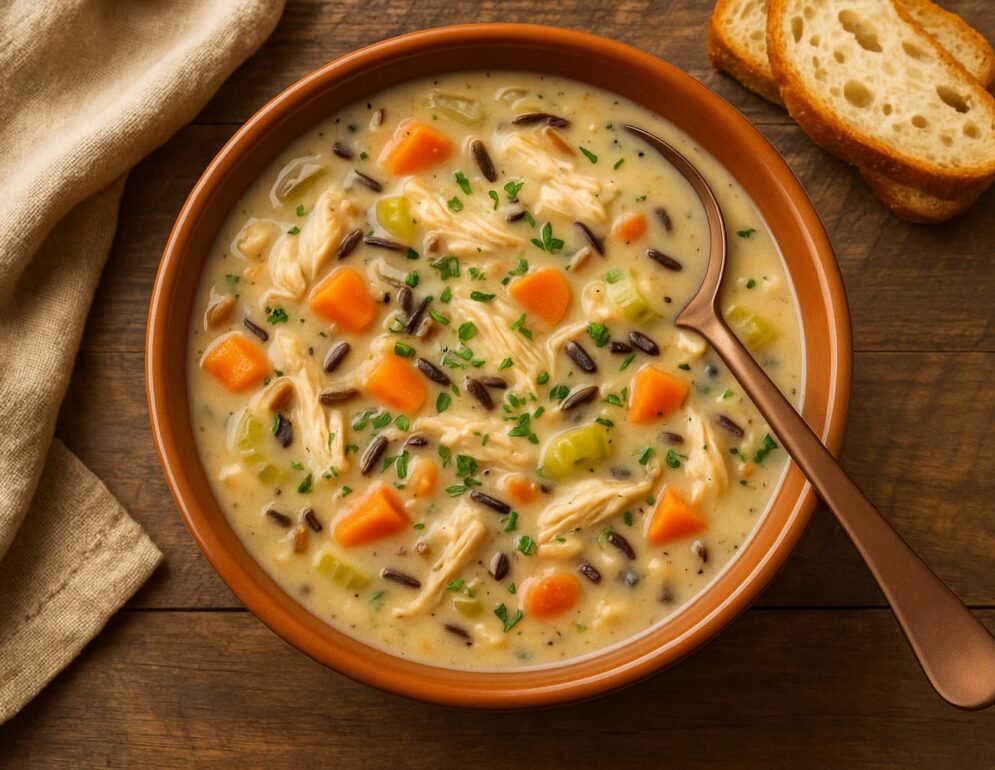
Cozy Crockpot Soup for Your Fall Meal Prep
That First Fall Chill Hits… and Suddenly You Crave Soup You...
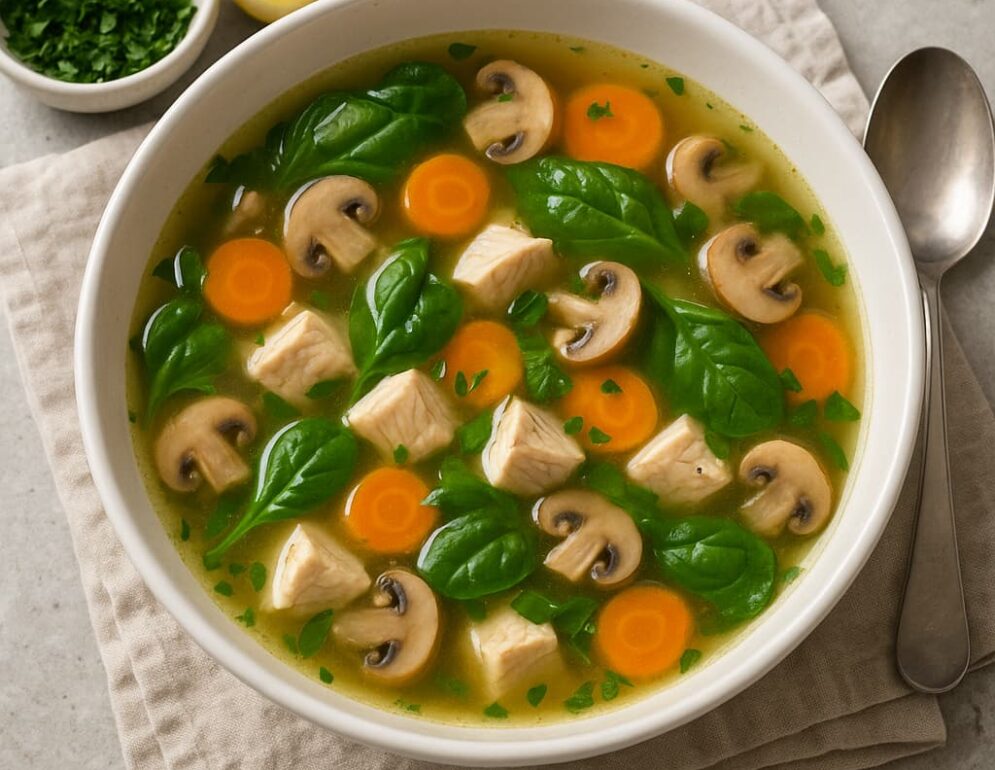
Light but Comforting Soup for Clean Eating Days
You know those days when your body just screams, “Please, no more...
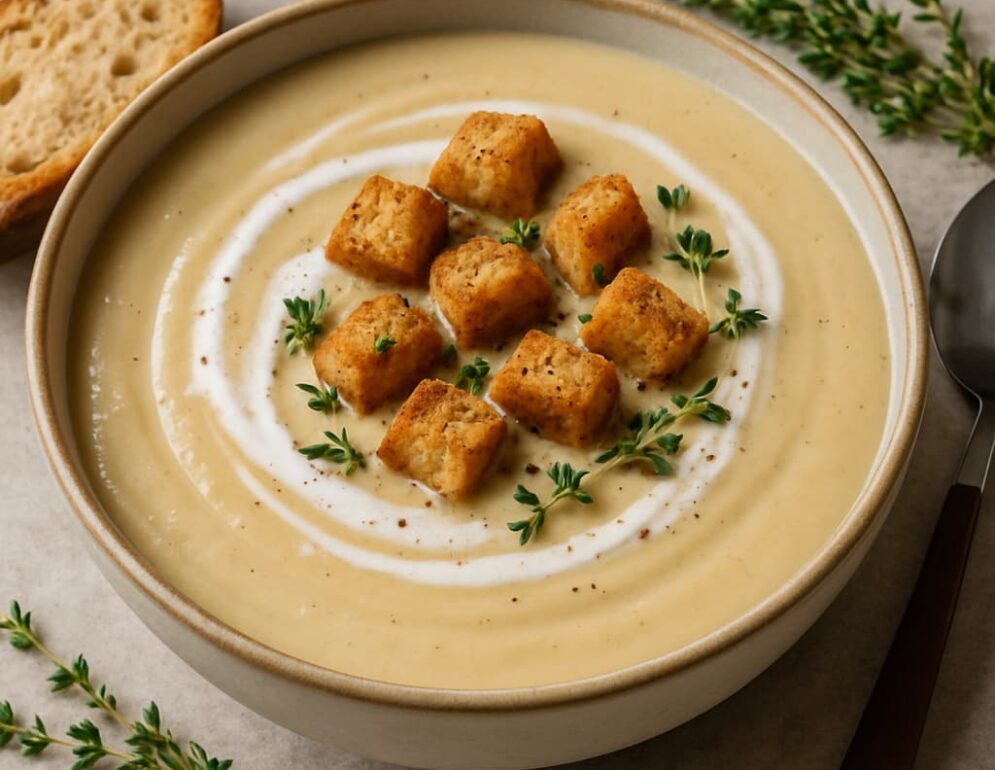
Creamy Vegan Soup That Doesn’t Taste Vegan
Let’s be honest for a second—when someone says “vegan soup,”...
Cozy Crockpot Soup for Your Fall Meal Prep
That First Fall Chill Hits… and Suddenly You Crave Soup You know that exact moment when you realize summer’s over? The air turns...
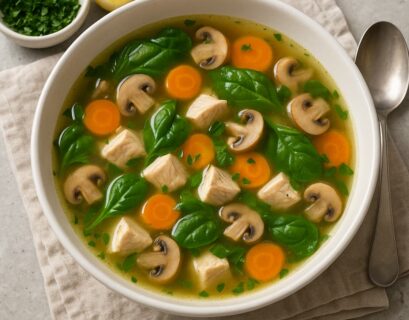
Light but Comforting Soup for Clean Eating Days
You know those days when your body just screams, “Please, no more heavy meals!” but your stomach still wants something warm, cozy,...
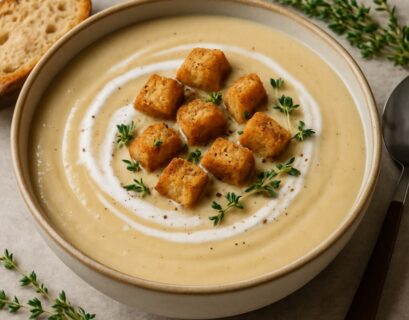
Creamy Vegan Soup That Doesn’t Taste Vegan
Let’s be honest for a second—when someone says “vegan soup,” most people’s minds jump straight to something green, bland, and...
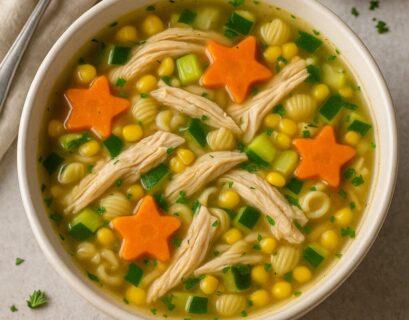
Chicken and Veggie Soup Kids Will Actually Eat
You know that moment when you proudly set a steaming bowl of “healthy homemade soup” in front of your kid… and they give you that...
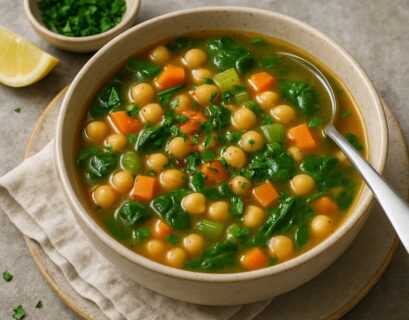
Quick and Healthy Soup Ready in 15 Minutes
Let’s be honest — sometimes you just want to eat something warm, tasty, and healthy without turning your kitchen into a war zone. Ever...
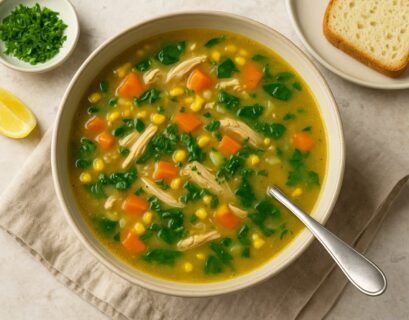
Gluten-Free Soup That Everyone Will Enjoy
You ever notice how soup somehow fixes everything? Rainy day? Soup. Rough week? Soup. Existential crisis? Okay, maybe soup and a good...
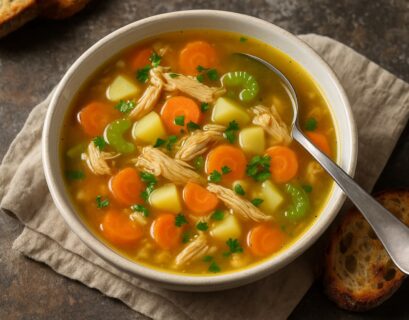
Smart Way to Freeze and Reheat Soup Like a Pro
You know that moment when you make a huge pot of soup thinking, “I’ll totally eat this all week”, and then by day two, you’re...
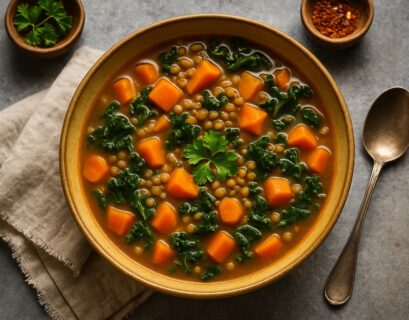
Nourishing Winter Soup to Support Immunity
Introduction: Because No One Wants to Catch a Cold Again Let’s be honest—winter is magical… until your nose starts running like a...
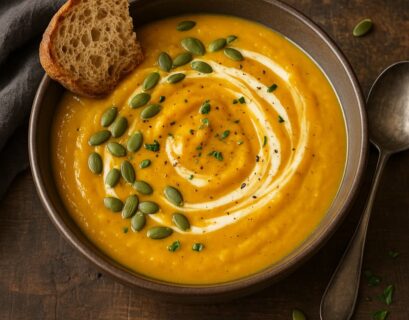
Fall Soup You Can Make Right in Your Crockpot
When Fall Hits, So Does the Soup Craving You know that moment when the air finally turns crisp, and suddenly all you want is something...
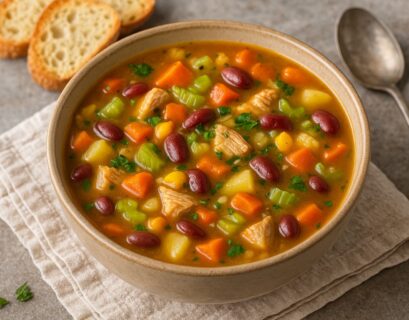
Slow Cooker Soup Plan for the Whole Week
So, you want a week’s worth of soups without having to lift more than a ladle? Same. Honestly, I think my slow cooker is the closest...